Top 5 Ways to Fix Game Crashes on Android Emulators
The gaming experience on Android emulators can be exhilarating, especially when diving into popular titles like PUBG Mobile or Mobile Legends. However, game crashes can often spoil the fun, leading to frustration for many gamers in Malaysia and Southeast Asia. In fact, over 60% of emulator users report experiencing crashes at some point. If you're looking for effective ways to fix game crashes on your Android emulator, this guide is tailored just for you.
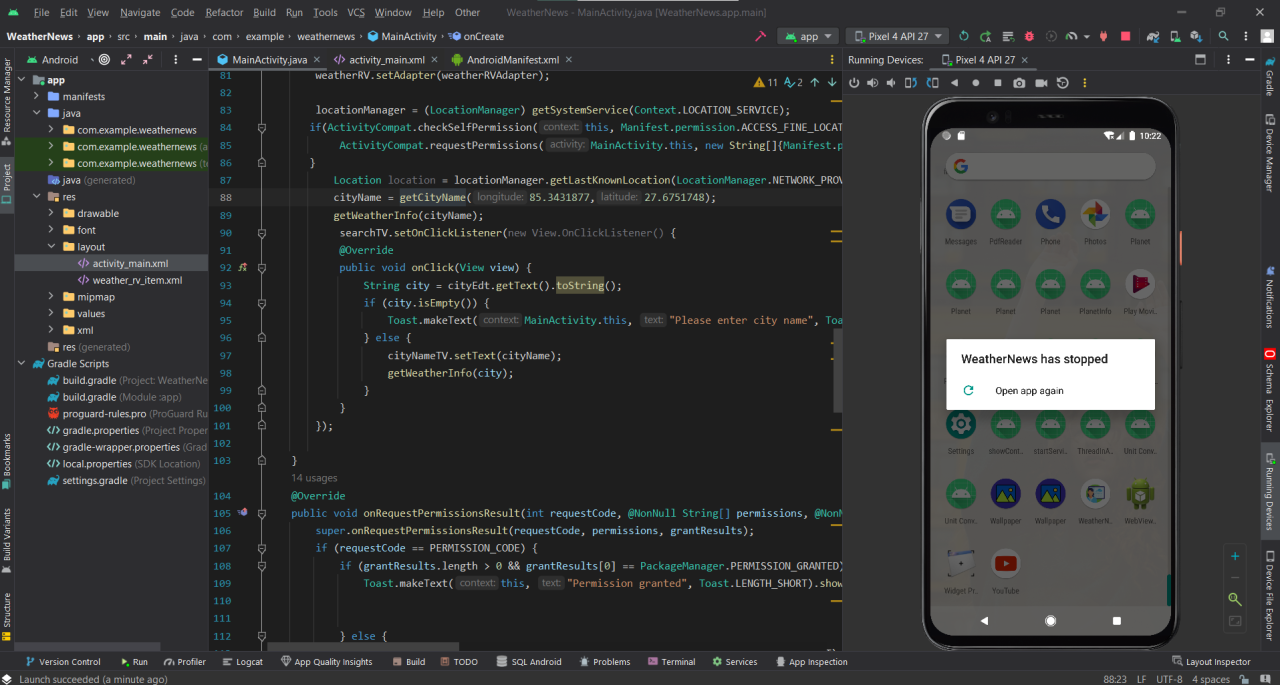
Common Causes of Crashes
Understanding the common culprits behind emulator crashes is the first step in troubleshooting. Here are some typical reasons why your Android emulator may crash:
- Compatibility Issues: Not all games are optimized for every emulator. For example, some titles may run smoothly on BlueStacks but may not perform well on NoxPlayer or LDPlayer. It's crucial to choose the right emulator for the game you want to play.
- System Resource Limitations: Android emulators can be resource-intensive. If your PC or laptop does not have sufficient RAM, CPU power, or GPU capabilities, you may experience crashes. This is particularly relevant for gamers using older devices.
- Software Bugs: Like any software, emulators can have bugs. These can lead to unexpected crashes, especially after updates. Staying updated with the latest versions can help mitigate these issues.
- Overheating: Long gaming sessions can cause your device to overheat. This can lead to performance throttling or crashes, especially on mobile devices used for emulation.
Troubleshooting Steps
If your game keeps crashing, follow these step-by-step troubleshooting methods to diagnose and resolve the issue:
Step 1: Check Emulator Settings
Start by checking the settings of your emulator. Make sure that it is configured properly for the game you're playing. For instance, in BlueStacks, you can adjust the CPU and RAM allocation in the settings menu to improve performance.
Step 2: Update Your Emulator
Ensure that you're using the latest version of your emulator. Developers frequently release updates to fix bugs and improve compatibility. For example, if you're using NoxPlayer or LDPlayer, check for updates regularly.
Step 3: Reduce Graphics Settings
High graphic settings can strain your system. Lowering the graphics quality can lead to more stable gameplay. In most emulators, you can find graphics settings under the "Settings" menu. Reducing the resolution can also help.
Step 4: Virtualization Technology
Ensure that virtualization technology is enabled in your system's BIOS. This feature allows emulators to run more efficiently by utilizing hardware acceleration. For many gamers, enabling virtualization can significantly reduce crash rates.
Step 5: Clear Cache and Data
Sometimes, simply clearing the cache and data of the emulator can fix crashing issues. This resets the emulator's state and can resolve conflicts that may be causing the crash.
Performance Optimization
Beyond troubleshooting crashes, optimizing your emulator's performance can enhance your gaming experience. Here are some effective tips:
1. Allocate More Resources
Manually allocate more CPU and RAM to your emulator. For instance, BlueStacks allows users to customize these settings. Increasing resource allocation can improve performance significantly, especially for resource-heavy games.
2. Use Hardware Acceleration
Hardware acceleration can greatly improve the efficiency of your emulator, reducing lag and crashes. Check the settings of your emulator to ensure this feature is enabled. For example, BlueStacks users have reported a smoother experience with hardware acceleration turned on.
3. Optimize Graphics Settings
Fine-tune the graphics settings to match your system's capabilities. If you notice frequent crashes with high settings, consider using medium or low settings. This not only stabilizes performance but also provides a smoother gaming experience.
4. Keep Background Applications Closed
Running multiple applications simultaneously can consume valuable system resources. Close unnecessary applications before launching your emulator to ensure that it has enough resources to run smoothly.
5. Regular Maintenance
Perform regular maintenance on your device by updating drivers and cleaning temporary files. Ensuring that your GPU drivers are up-to-date can have a considerable impact on performance, especially for visually demanding games.
FAQ
Why does my Android emulator keep crashing?
Your Android emulator may be crashing due to several factors, including compatibility issues with specific games, insufficient system resources, outdated software, or overheating. It's essential to check your emulator settings and ensure that your device meets the recommended specifications for the games you're playing.
What should I do if my game crashes on an emulator?
If your game crashes, start by checking the emulator's settings and ensure it's updated to the latest version. Consider lowering the graphics settings, allocating more resources, and ensuring that virtualization technology is enabled. Clearing the emulator's cache and data may also resolve the issue.
With these troubleshooting steps and performance optimization tips, you can enjoy a more stable gaming experience on your Android emulator. Whether you're battling it out in Mobile Legends or strategizing in Clash of Clans, these fixes will ensure that crashes become a thing of the past. Happy gaming!